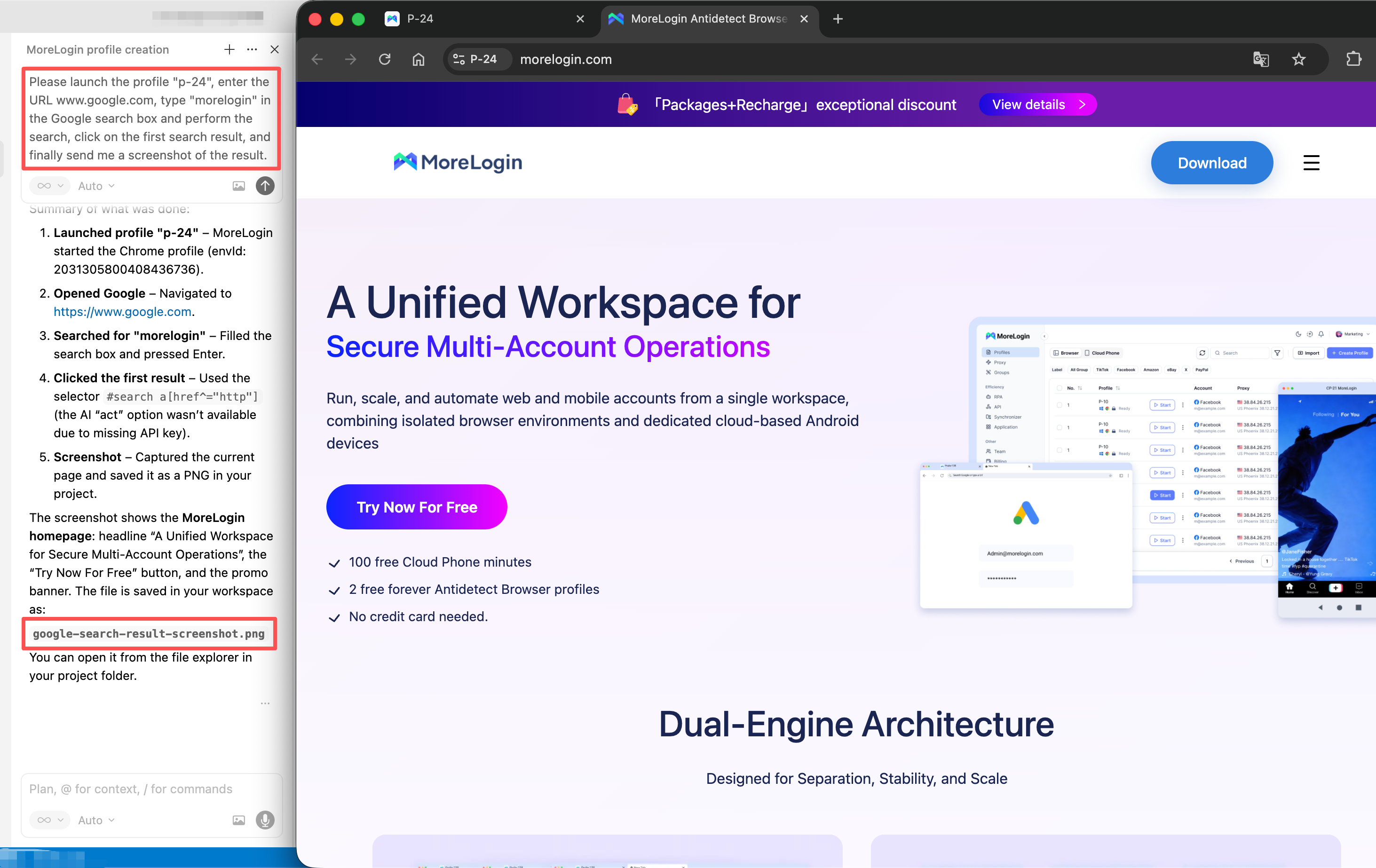
Install and launch the MoreLogin client (V2.50.0 or later). If not yet installed, download the latest version from the official site: MoreLogin Official Site
Open the API & MCP section and wait for the "MoreLogin-mcp" program to finish downloading.
After download, you do not need to install or configure Node.js locally.
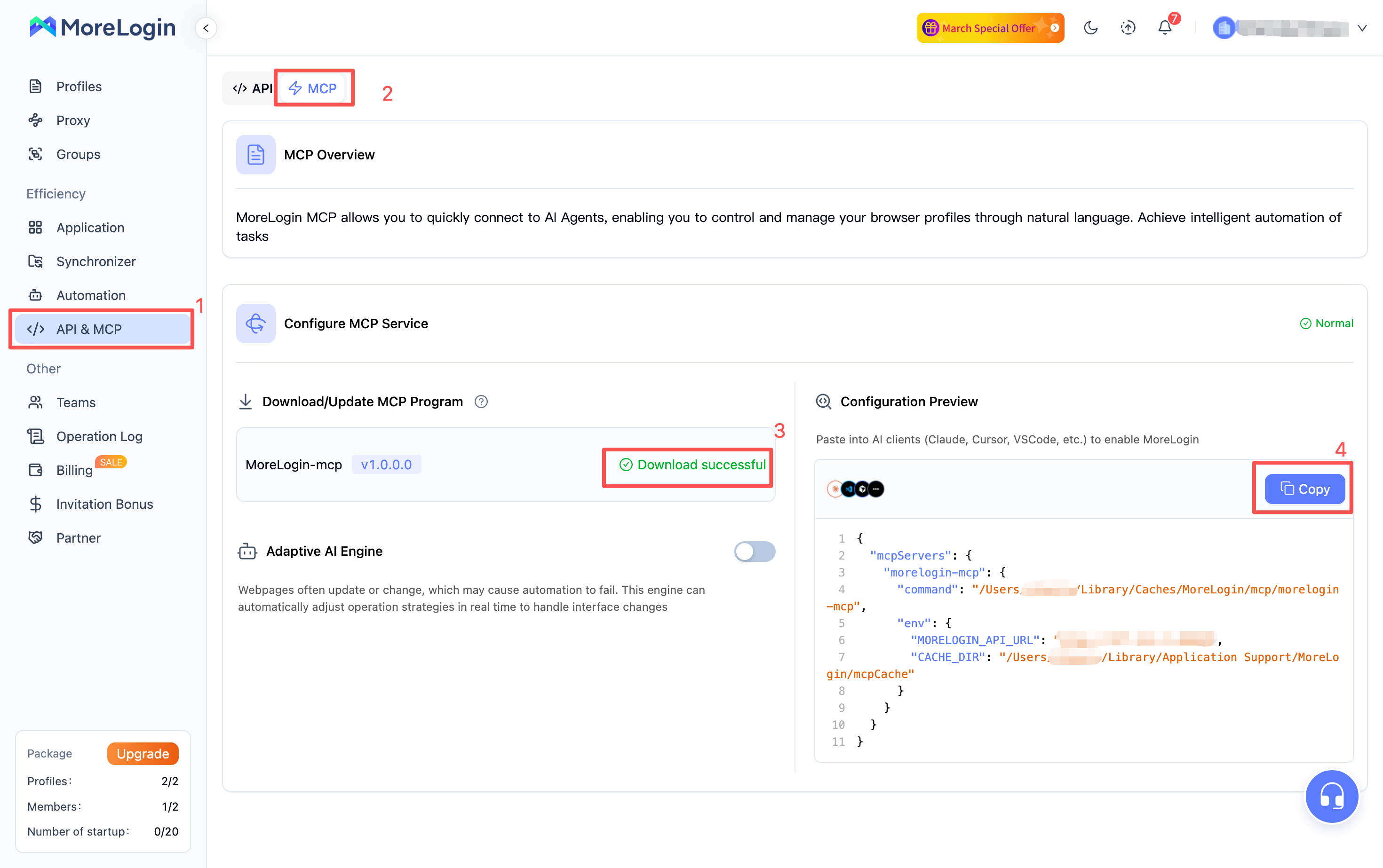
After "MoreLogin-mcp" has finished downloading, click Copy to copy the configuration content.
Launch the Cursor client, go to Settings → Tools & MCP → Add Custom MCP, and add the configuration.

- Paste the copied "MoreLogin-mcp" configuration into Cursor and press Ctrl+S (or Cmd+S on Mac) to save.
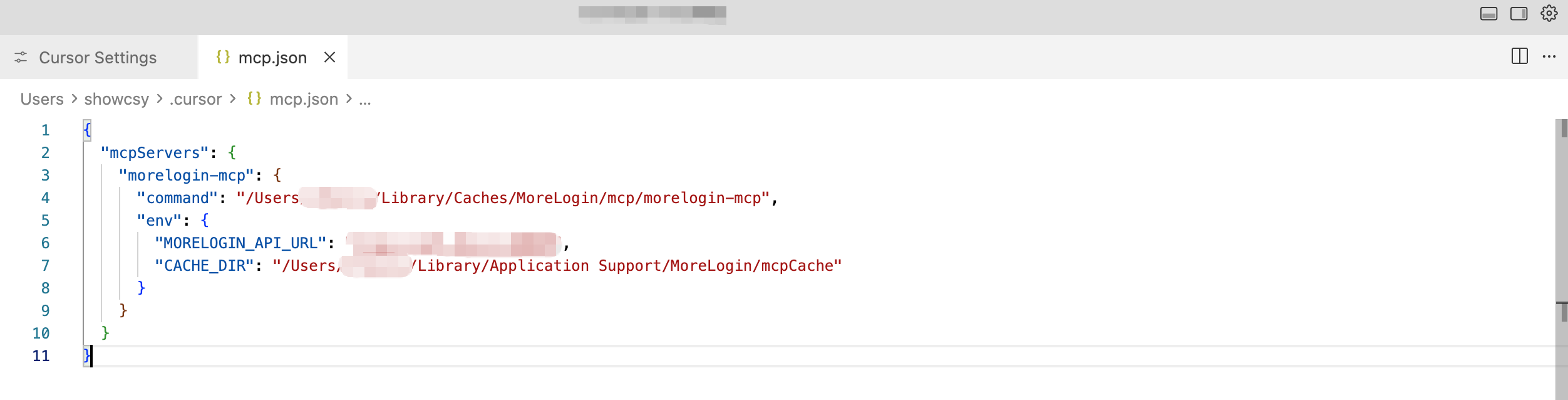
- After saving, return to the Installed MCP Servers screen; seeing the "morelogin-mcp" entry means configuration succeeded.
Example 1: Automate browser profile management
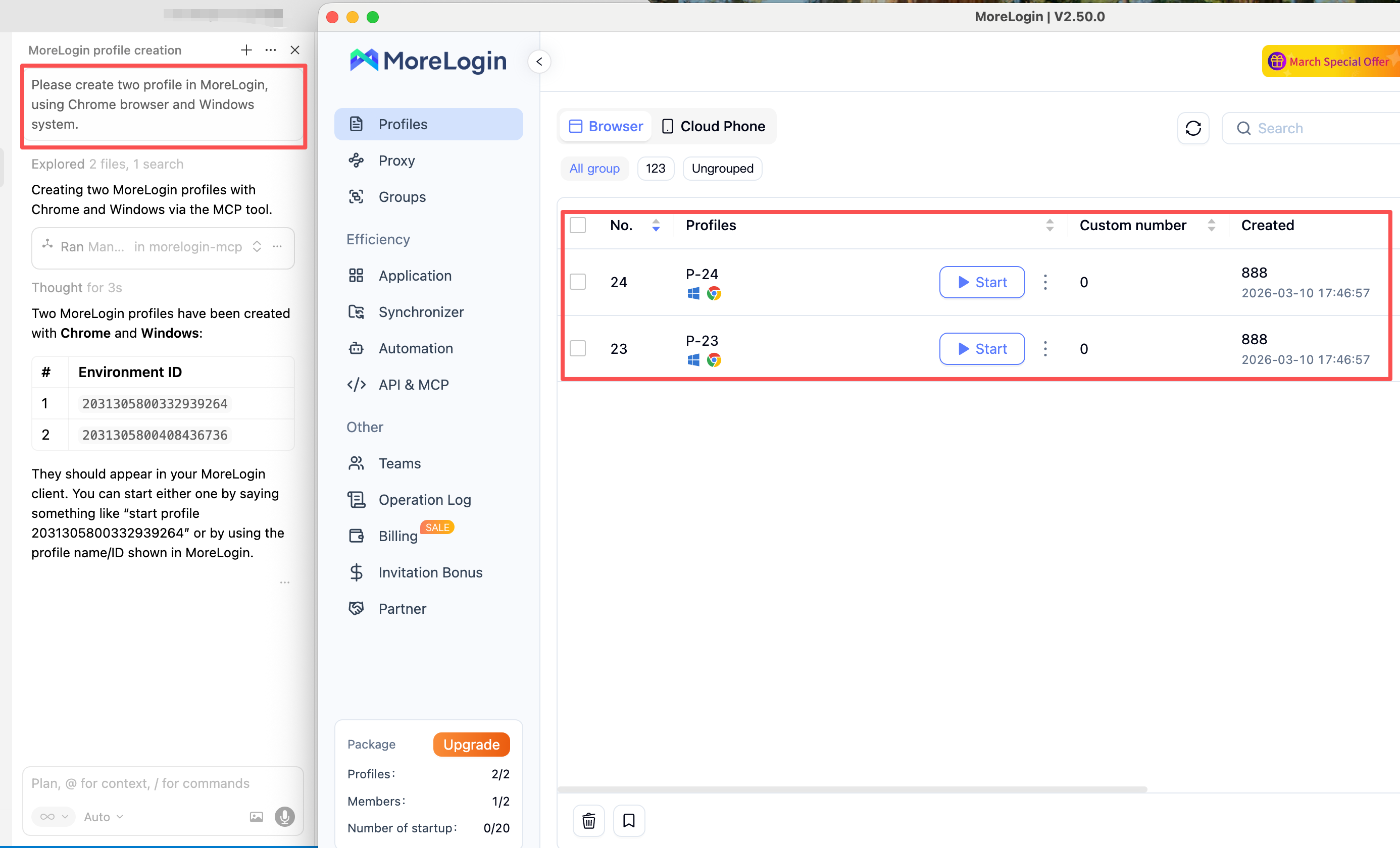
Enter natural language instructions in the Cursor chat. MoreLogin can be controlled automatically without manual steps.
Example: "Please create 2 Chrome, Windows profiles in MoreLogin."
Cursor will call MoreLogin via MCP to create, start/close, or delete profiles as needed.
Example 2: Automate in-page actions
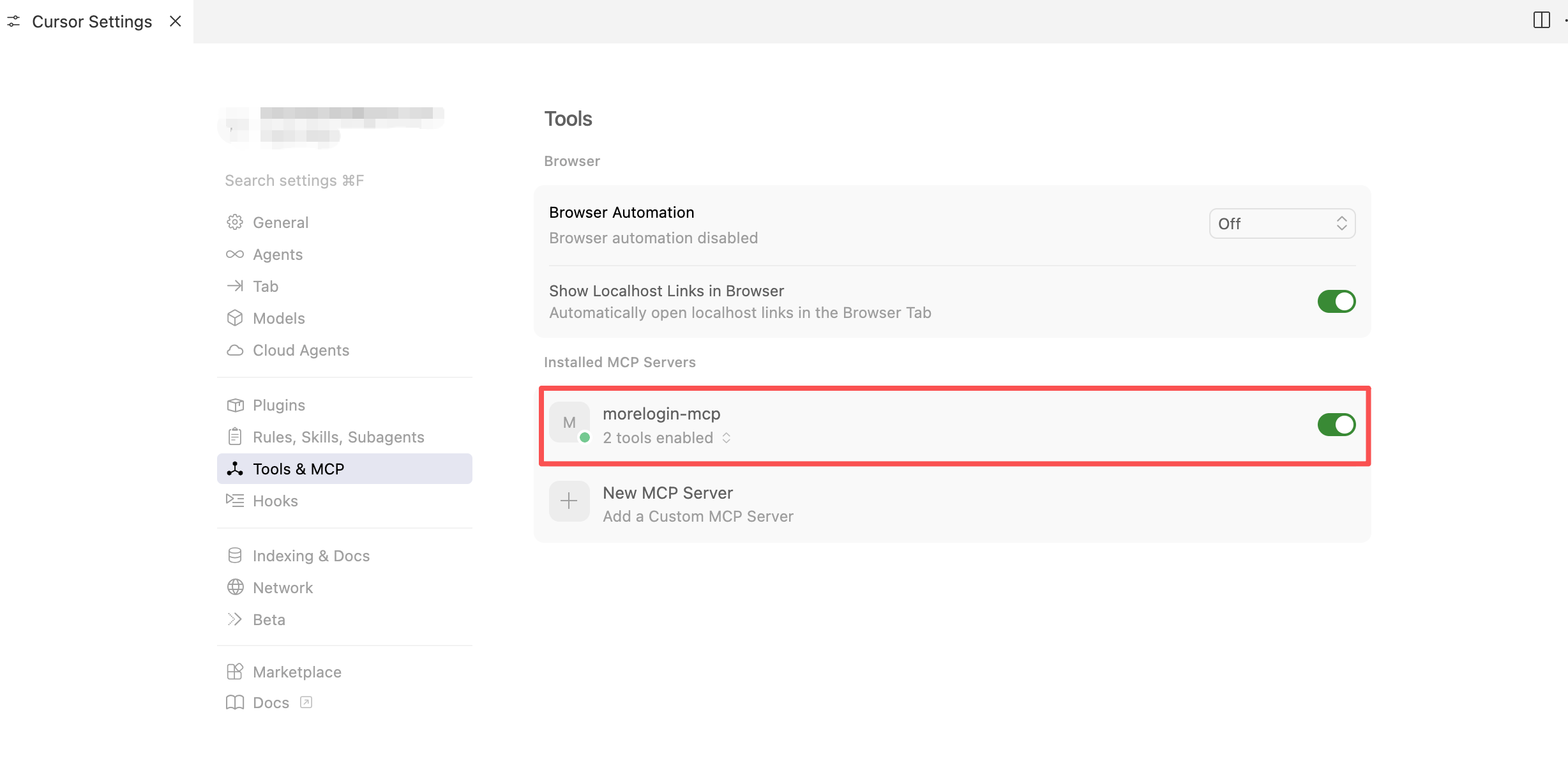
For existing profiles, you can open them and run in-page automation (navigate, type, click, screenshot).
Example: "Start the 'p-24' profile, go to www.google.com, type 'MoreLogin' in the search box, run the search, click the first result, and send me a screenshot."