# Claude Desktop MCP Integration

## Configuration Steps

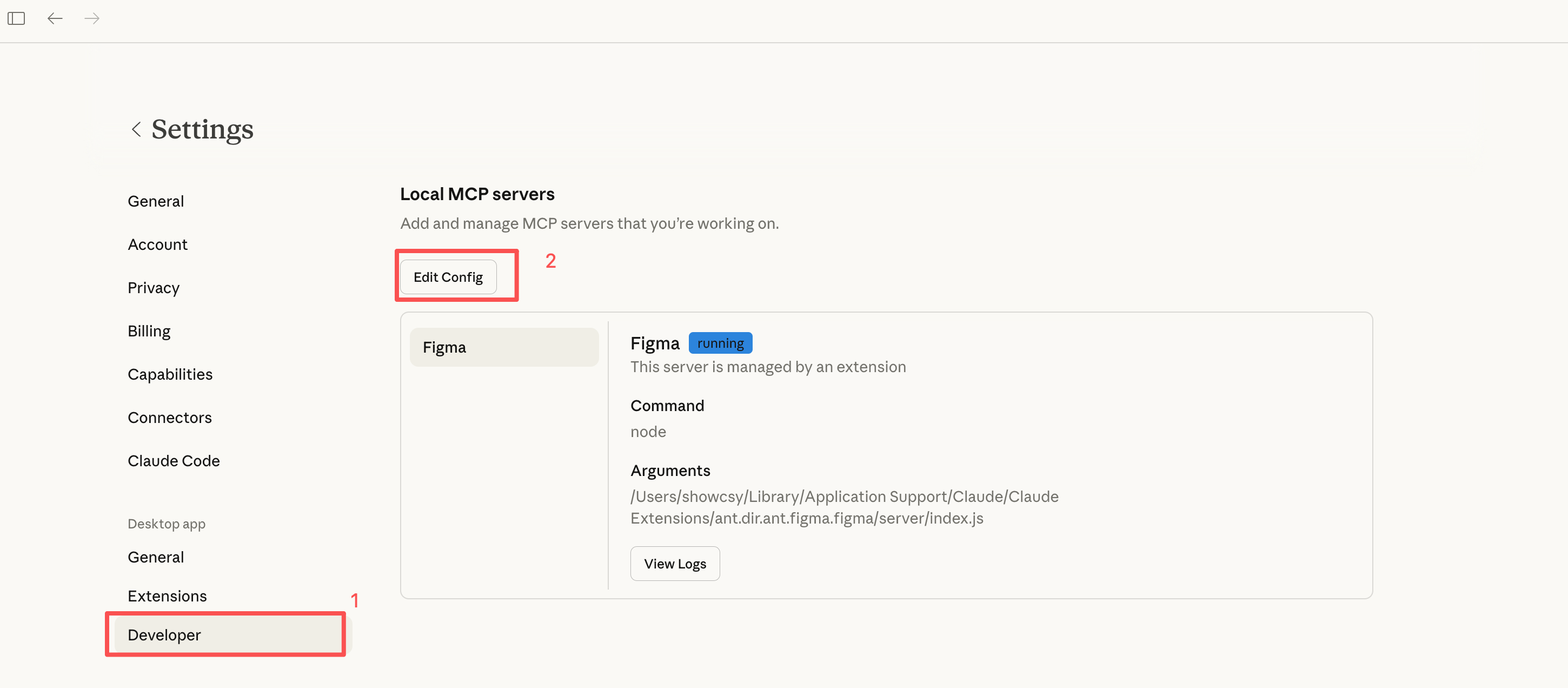
1. Launch the Claude client and go to **Settings** → **Developer** → **Edit Config** to open the config file for editing.


![Claude Edit Config](/assets/image7.e87c2f7876141c77e0db3a251181251a5179f03dda5117aac85bcccb01965709.0feb6212.png)

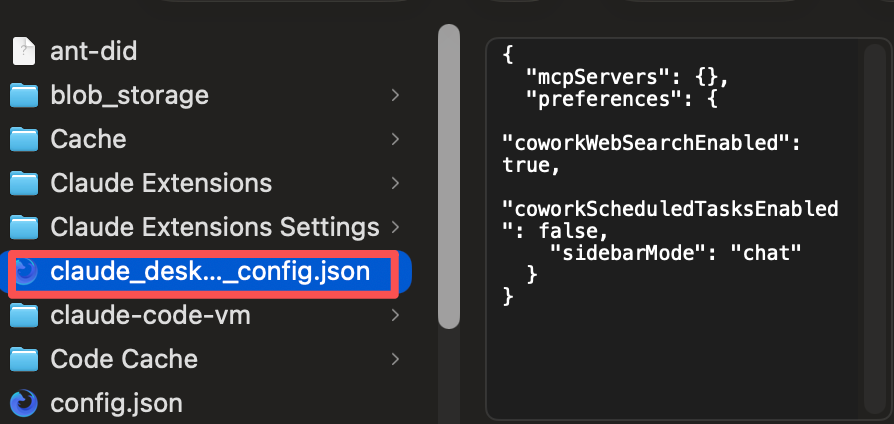
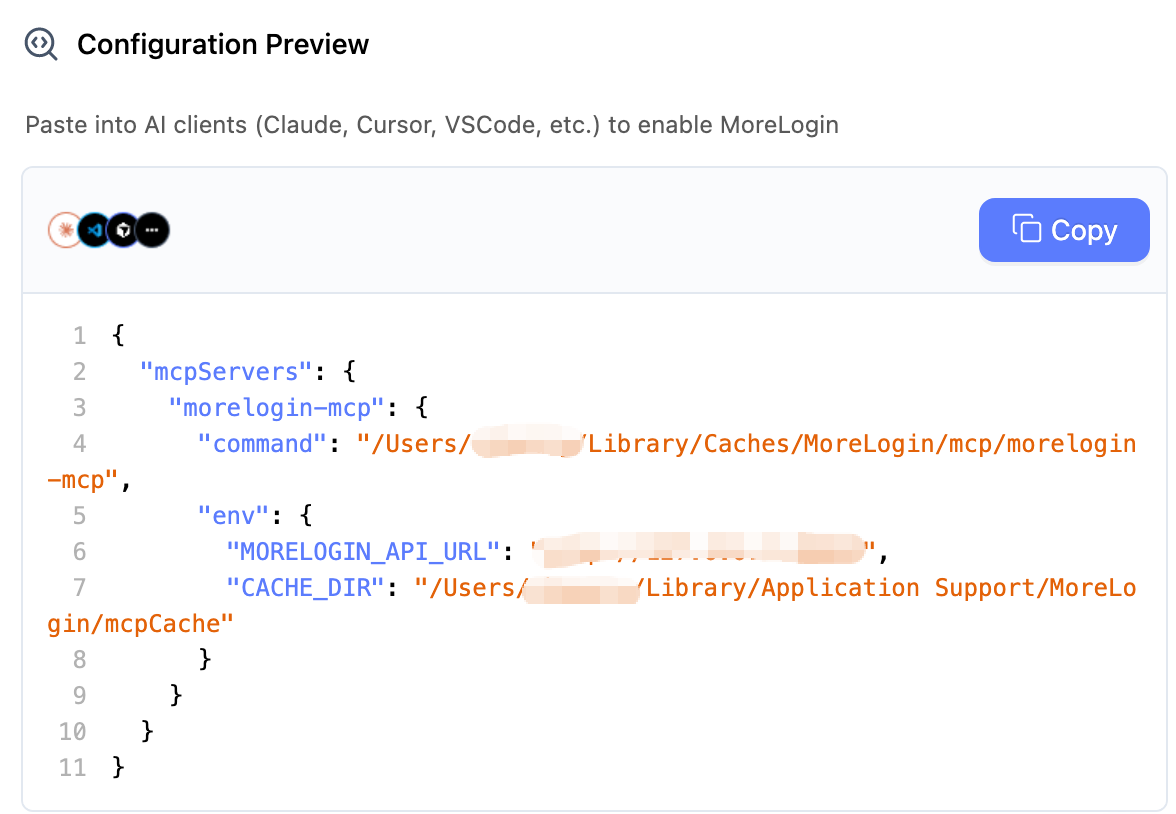
1. Open the local config file in a text editor, paste the MoreLogin MCP configuration (replacing the existing content if needed), then save with **Ctrl+S** (or **Cmd+S** on Mac).


![Edit config file](/assets/image8.b84b64a5448331275e47c534168b43cceeb7737f982a4890b05648d4af783619.0feb6212.png)

![Paste MCP config](/assets/image9.2cf4f8010a3b7bd9575d9ce0e9e37a836e899c7070ef9eac9a8c3dfcfeced985.0feb6212.png)

1. In **Settings** → **Connectors**, the presence of "MoreLogin-mcp" indicates that configuration succeeded.
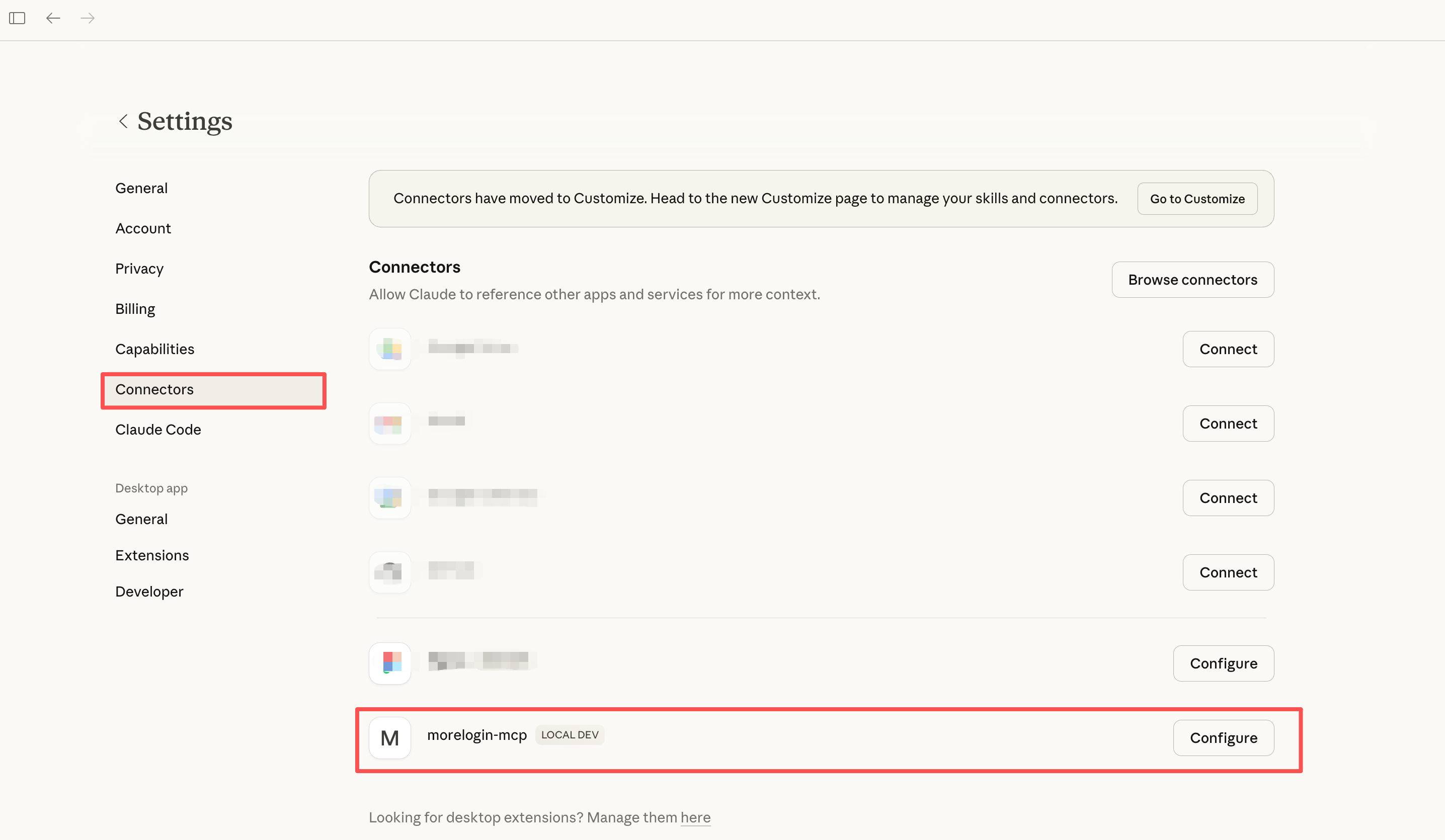

![Connectors with MoreLogin-mcp](/assets/image10.636f60828414686bd0a11f78a16b3dca433d91e71c364b66bd7869f7e91c7ff7.0feb6212.png)

## Usage Examples

Enter natural language instructions in the Claude chat; Claude will call MoreLogin via MCP. Usage is the same as in Cursor.

1. **Profile management**: create, start/close, delete profiles, etc.
2. **In-page automation**: open URLs, type, click elements, take screenshots, etc.
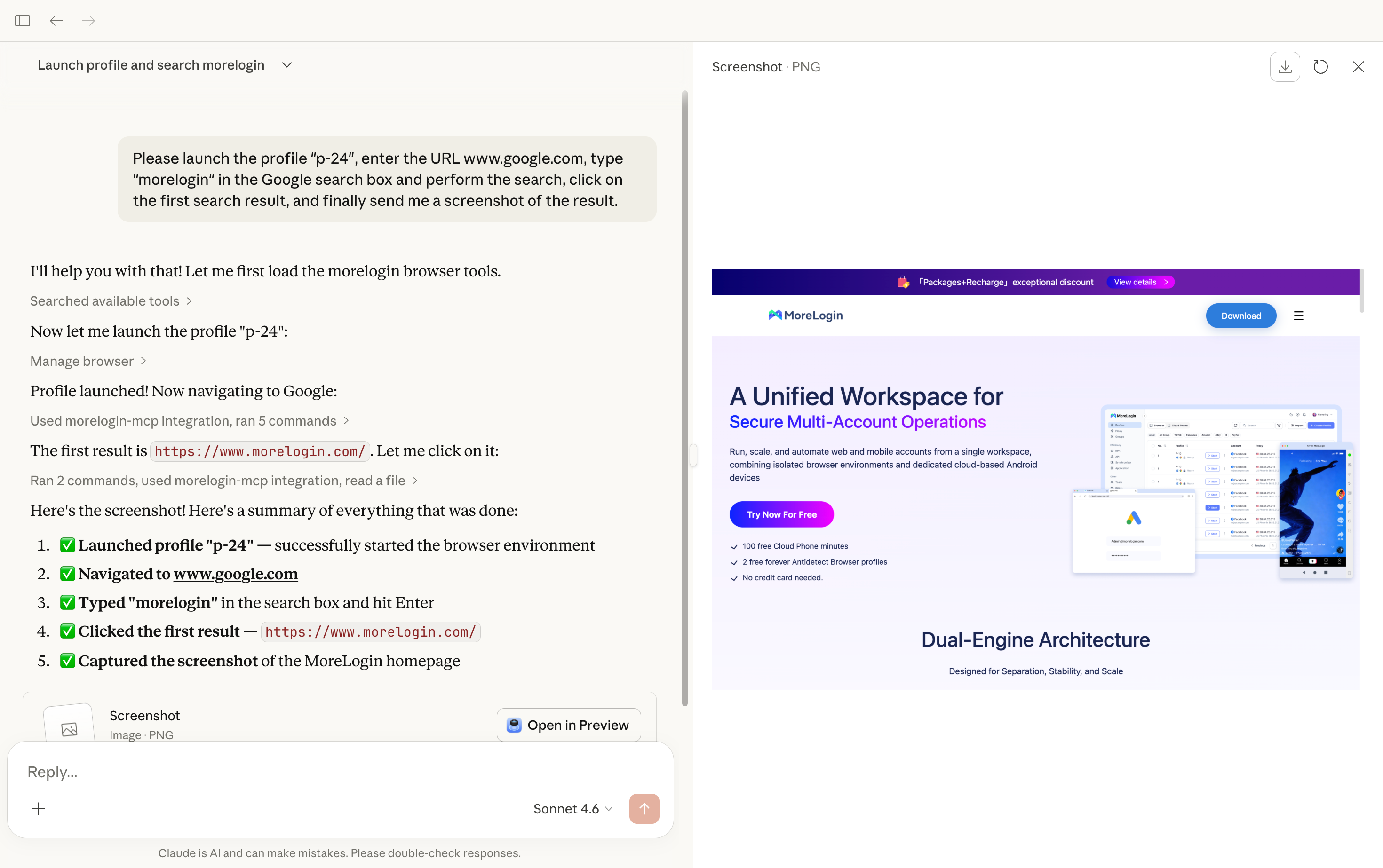

![Claude usage example](/assets/image11.ecc30131e05c649135f1dc0d54f0d0530ae822623b7272e5e8a22f69bcd81e9d.0feb6212.png)