Once a template is created, you can create a Schedule to trigger it according to a schedule.
You can create a schedule in two ways:
- Create a schedule via Custom Template.
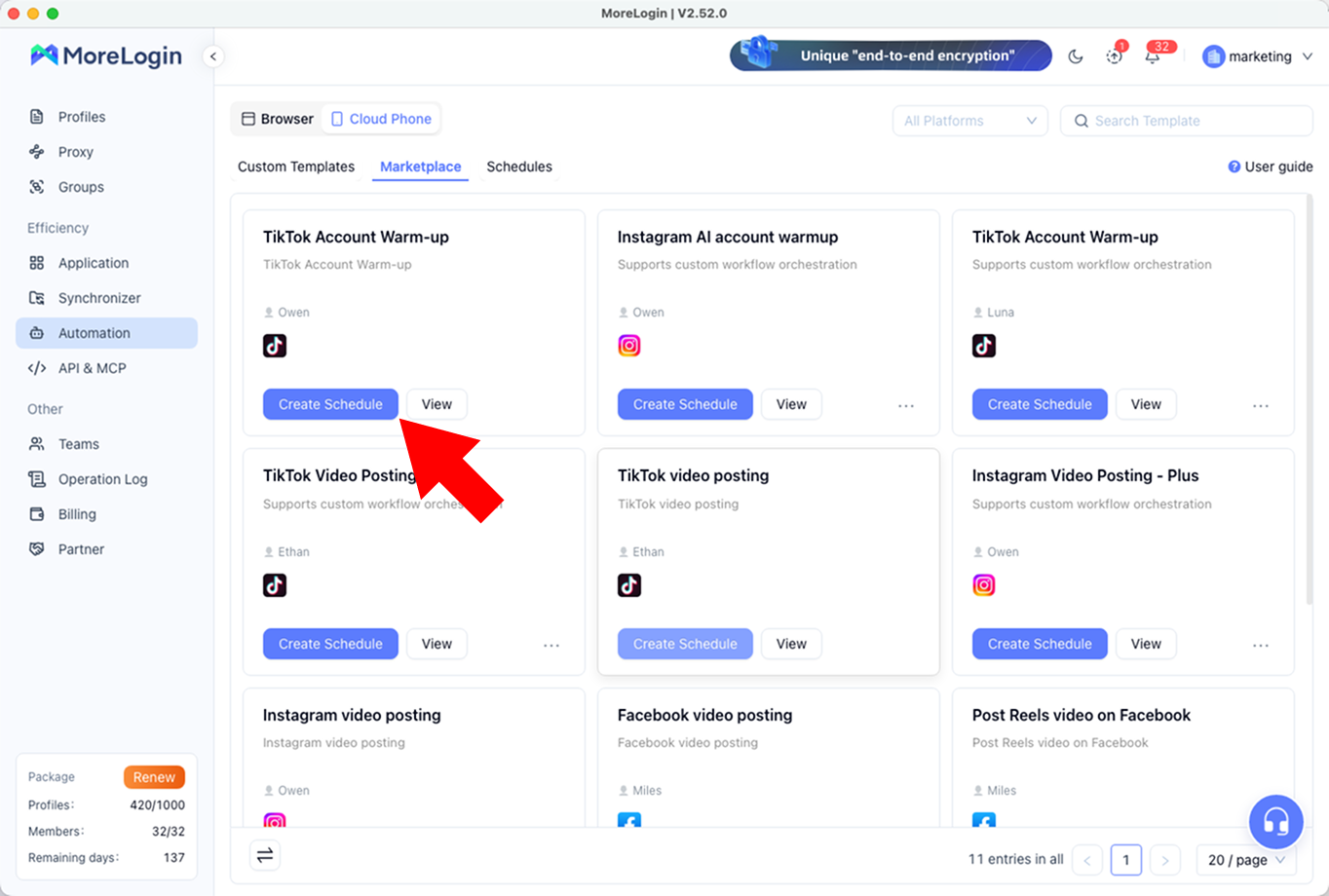
- Create a schedule via Marketplace.
Click the "Create Schedule" button to start.
There are 3 steps in creating a schedule. Click "Next" in the bottom left corner to proceed.
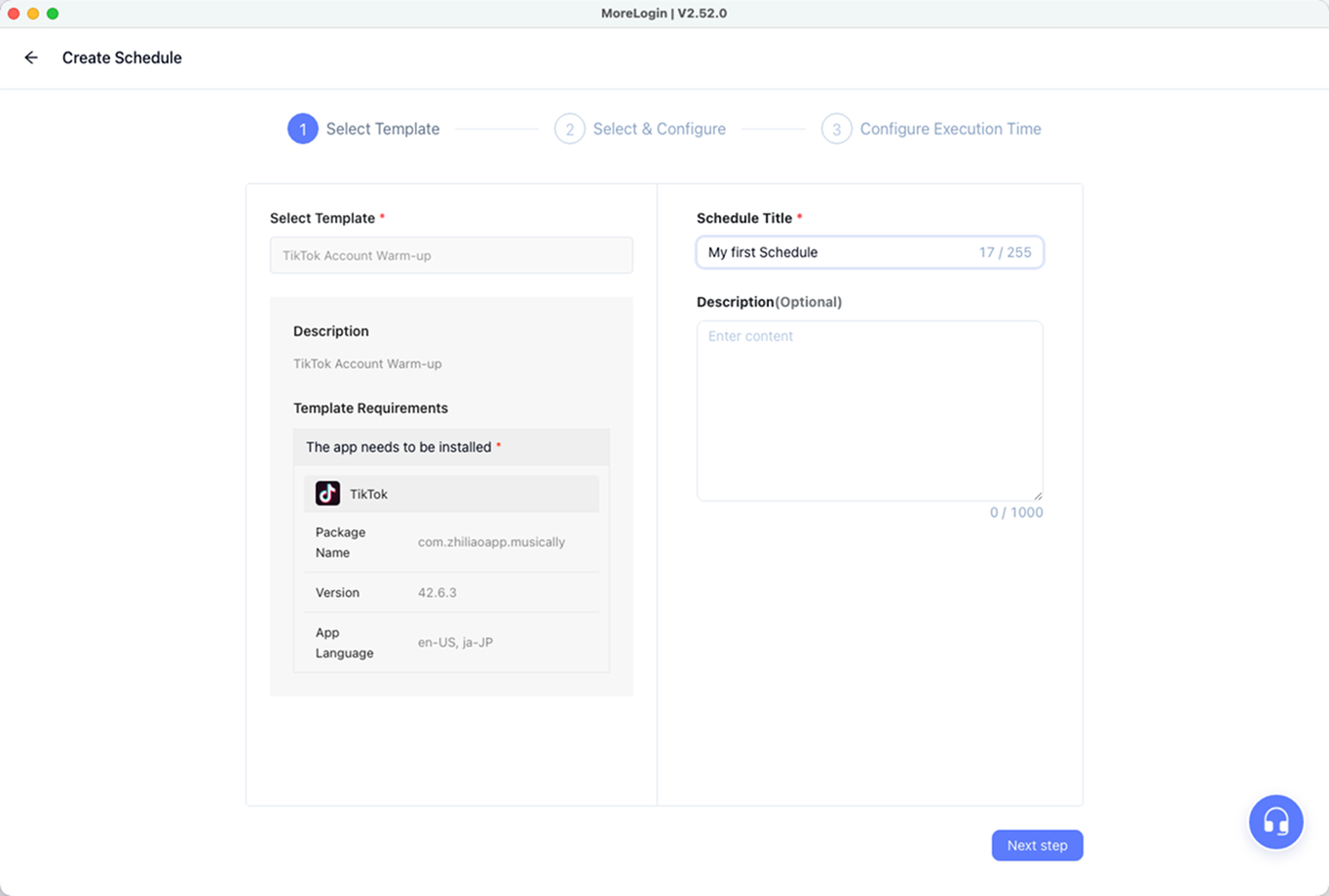
[Select Template]
- The selected template and its information in the left area do not need to be filled in.
[!NOTE] Marketplace will include a detailed description and requirements for the App, version, and language.
- Fill in the right area:
- "Schedule Title" (Required)
- "Description(Optional)"
- The selected template and its information in the left area do not need to be filled in.
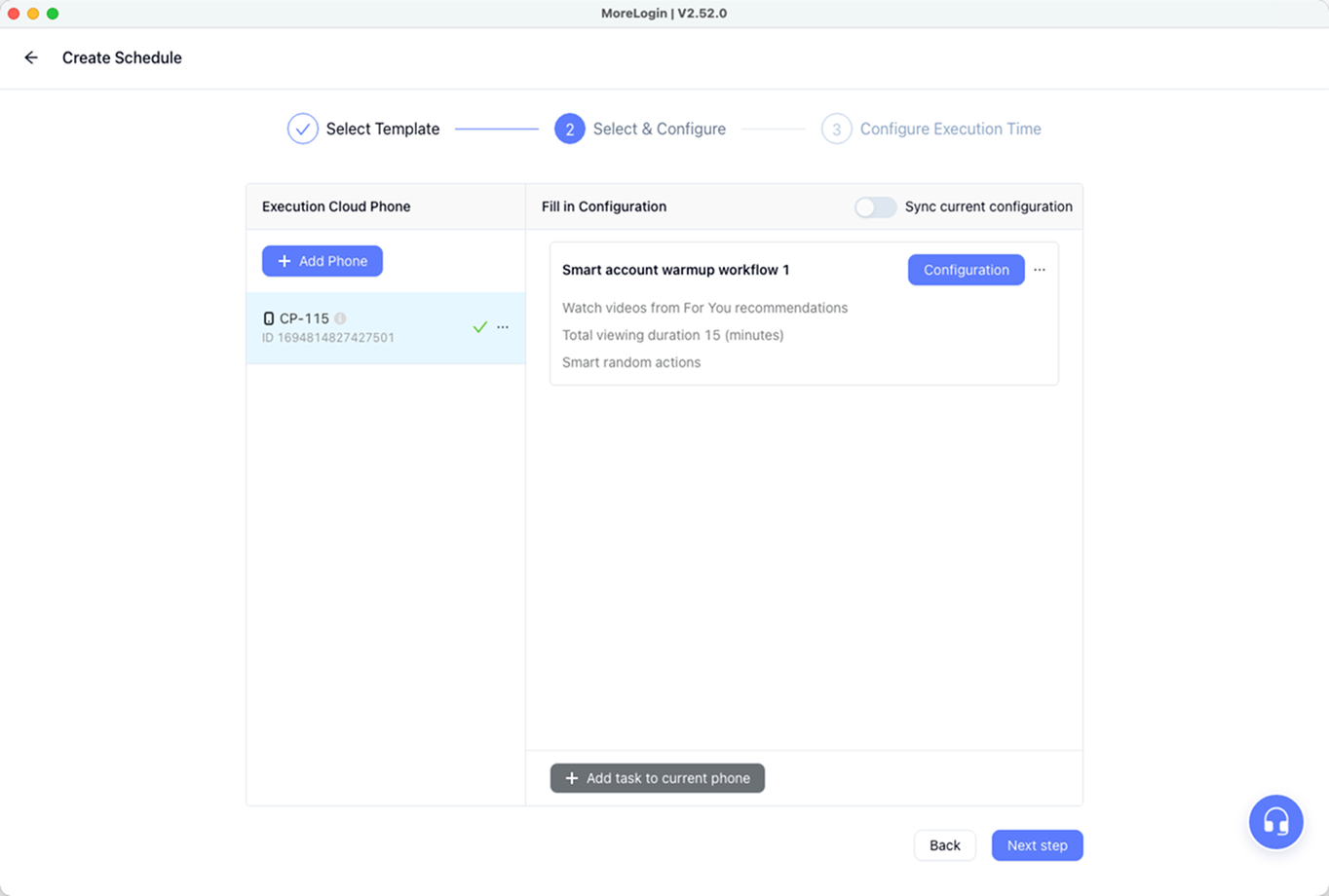
[Select & Configure]
- Select the "Cloud Phone" for the task in the left area.
- Fill in configuration information required for the current template in the right area.
[!NOTE]
- Required parameters for each execution phone on the right must be filled in.
- A green checkmark will appear after parameters are filled for a phone. A gray number indicates incomplete information.
If you need to edit a large number of devices in bulk, we also provide a batch editing function.
[Configure Execution Time]
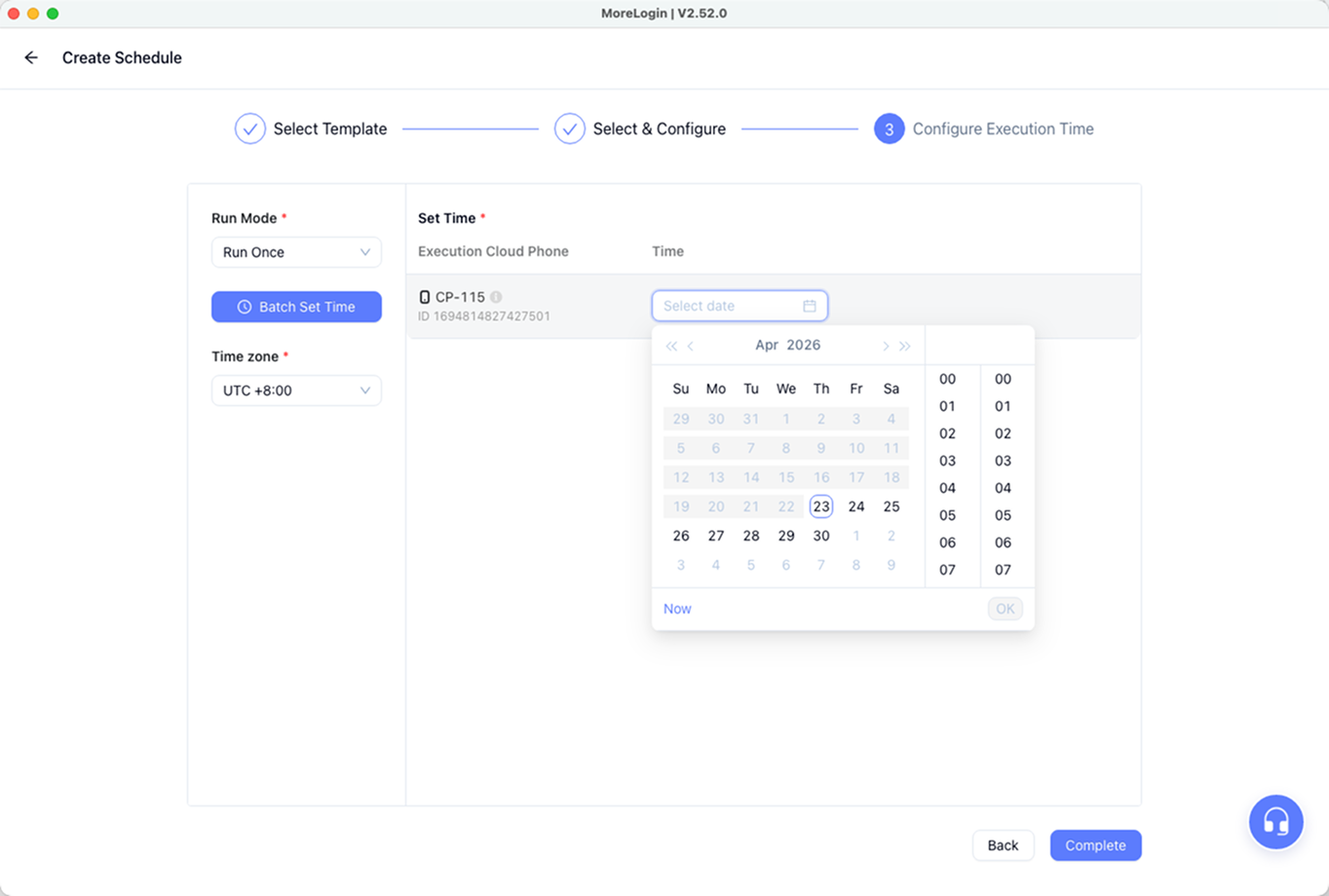
Select "Run Mode":
- "Run Once": The task ends after a single execution.
- "Run Daily": Executes a recurring task, triggered at a fixed time every day.
Set "Time":
- Set the run time for each phone in the right area.
- Recurring tasks will preview the next 3 run times on the right.
[!NOTE] Monthly compiled cloud phones can run simultaneously. Minutely billed cloud phones allow a maximum of 5 to run simultaneously. If more than 5 cloud phones are executing RPA tasks at the same time, subsequent plans will wait for the preceding phones to finish before executing.
"End Date": Only for recurring tasks, such as "Run Daily".
"Time Zone": Defaults to the computer system's time zone.