Nodes are an important capability in RPA. Through nodes, RPA can orderly complete a complex task. The following chapters will introduce the core nodes in MoreLogin in detail.
How to add nodes? You need to create a template or edit an existing template to add nodes.
- Click "..." on the node card to copy or delete the node.
- Click the card to expand the node configuration dialog.
- Node Naming: The title of the node at the top of the expanded dialog is editable, which is very specific for distinguishing multiple nodes in complex workflows.
- After the node runs successfully, you can click "View Logs" on the right.

Each node contains configuration and output.
- Configuration: Contains information driving the current node, similar to function parameter input in programming.
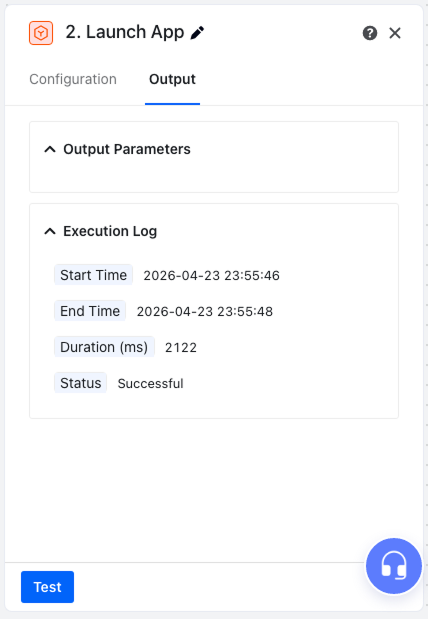
- Output: Information output from executing the current node. Output generally includes two parts: return parameters and execution log.
"Output Parameters": Parameters returned by the current node. You can reference current return parameters in subsequent nodes (e.g., extracting text from an element).
"Execution Log": Execution results of the current node, facilitating the view of historical tasks or node run status when testing templates.
- Start Time
- End Time
- Duration (ms)
- Status (Success/Failure)
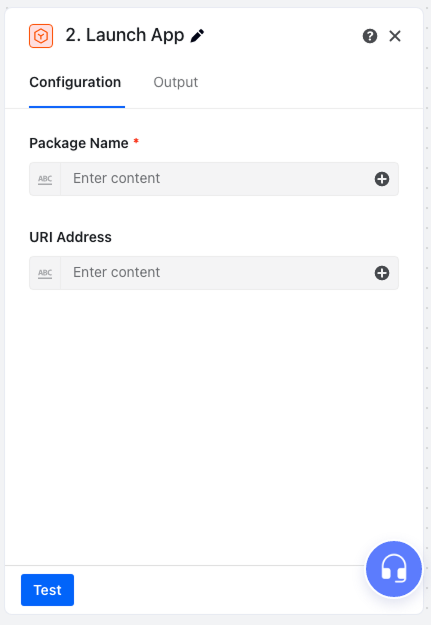
Variable referencing is an important feature in MoreLogin RPA. Variables generated in the process are automatically saved in the "Output" of each node. You can reference them at any time via the "+" after the input box in subsequent steps.
When the workflow finishes running, each node will display its current run status.
The leftmost side of the card shows the execution status:
- "Success": ☑️
- "Failure": X
- "Running": loading
- "Not Run": None

Click the "Output" button in the card or select the "Output" Tab to view the node's run output info, facilitating the check of each step's run status in the template.
Nodes in MoreLogin can be divided into the following categories. You can add a new node by clicking "+" between two adjacent nodes in the workflow.
Simulation Operations
Data Processing
Flow Logic
Files
Tools