在无头 Ubuntu 服务器上部署 MoreLogin,并通过本地 API 自动执行浏览器 — 无需桌面环境。
读完本指南后,您将拥有:
- Ubuntu 24.04 无头服务器上运行的 MoreLogin 实例
- 配置网络转发,以便外部计算机可以通过 CDP(Chrome DevTools 协议)进行连接
- 一个有效的 Python 自动化脚本,用于创建、启动、控制和清理浏览器
┌──────────────────────────────────────────────────────────┐
│                    Ubuntu 24.04 Server                   │
│                                                          │
│  ┌──────────────┐    ┌───────────────────────────────┐   │
│  │   xvfb       │───▶│  MoreLogin AppImage           │   │
│  │ (virtual     │    │  Local API :40000             │   │
│  │  display)    │    │  CDP debug :<dynamic>         │   │
│  │              │    │    (127.0.0.1, per profile)   │   │
│  └──────────────┘    └───────────────────────────────┘   │
│                              │                           │
│                        socat forwarding                  │
│                              │                           │
│                     0.0.0.0:40001 → 127.0.0.1:40000      │
│                     0.0.0.0:<N+1> → 127.0.0.1:<N>        │
└──────────────────────────────────────────────────────────┘
                               │
                          External machine
                     (Playwright / Puppeteer / Selenium)
[!NOTE] CDP 调试端口是动态 — 每个浏览器都有自己的端口,由
/api/env/start端点返回。上图使用<N>作为占位符。
| 要求 | 详情 |
|---|---|
| 操作系统 | Ubuntu 24.04 服务器 (x86_64) |
| 推荐规格 | 8 个 vCPU、8 GB RAM(支持 ~5 个并发浏览器环境) |
| 网络 | 出站互联网访问;打开入站端口 40001 和您选择的转发 CDP 端口,或改用 SSH 隧道 |
| Python(可选) | Python 3.8+ 和 pip 用于运行示例脚本 |
通过 SSH 连接到您的服务器并安装所需的软件包:
# FUSE support (required for AppImage)
sudo apt install -y libfuse2t64

# GTK / accessibility / display libraries
sudo apt install -y libatk1.0-0 libatk-bridge2.0-0 libatspi2.0-0
sudo apt install -y libcups2
sudo apt install -y libgtk-3-0 libgdk-pixbuf2.0-0
sudo apt install -y libgbm1 libxkbcommon0 libasound2t64

# Virtual framebuffer (headless display)
sudo apt install -y xvfb

# TCP forwarder
sudo apt install -y socat如果浏览器页面呈现无文本或显示缺失字符,请安装相应的字体包:
# CJK (Chinese, Japanese, Korean)
sudo apt install -y fonts-noto-cjk fonts-noto-cjk-extra

# Arabic
sudo apt install -y fonts-noto-color-emoji fonts-noto-extra对于其他语言,请安装匹配的Noto 字体系列 软件包。
wget https://get.morelogin.com/client/prod/linux/x64/2.54.0/MoreLogin_x86_64_2.54.0.AppImage
chmod +x MoreLogin_x86_64_2.54.0.AppImage
将
2.54.0替换为您的 MoreLogin 帐户或下载页面 上提供的最新版本。
使用 xvfb-run 提供虚拟显示,然后运行 AppImage:
nohup xvfb-run -a ./MoreLogin_x86_64_2.54.0.AppImage --no-sandbox > morelogin.log 2>&1 &验证是否启动成功:
# Check the process is running
ps aux | grep MoreLogin
该过程可能需要 5-10 秒才能完全初始化。
[!WARNING] 您必须先登录,然后才能调用任何其他本地 API 端点。 在无头服务器上,没有用于手动登录的 GUI,因此您必须通过 API 进行身份验证。如果没有这一步,所有 API 调用都将返回:
{"status": "error", "code": 401, "message": "您的登录状态已过期,请重新登录"}
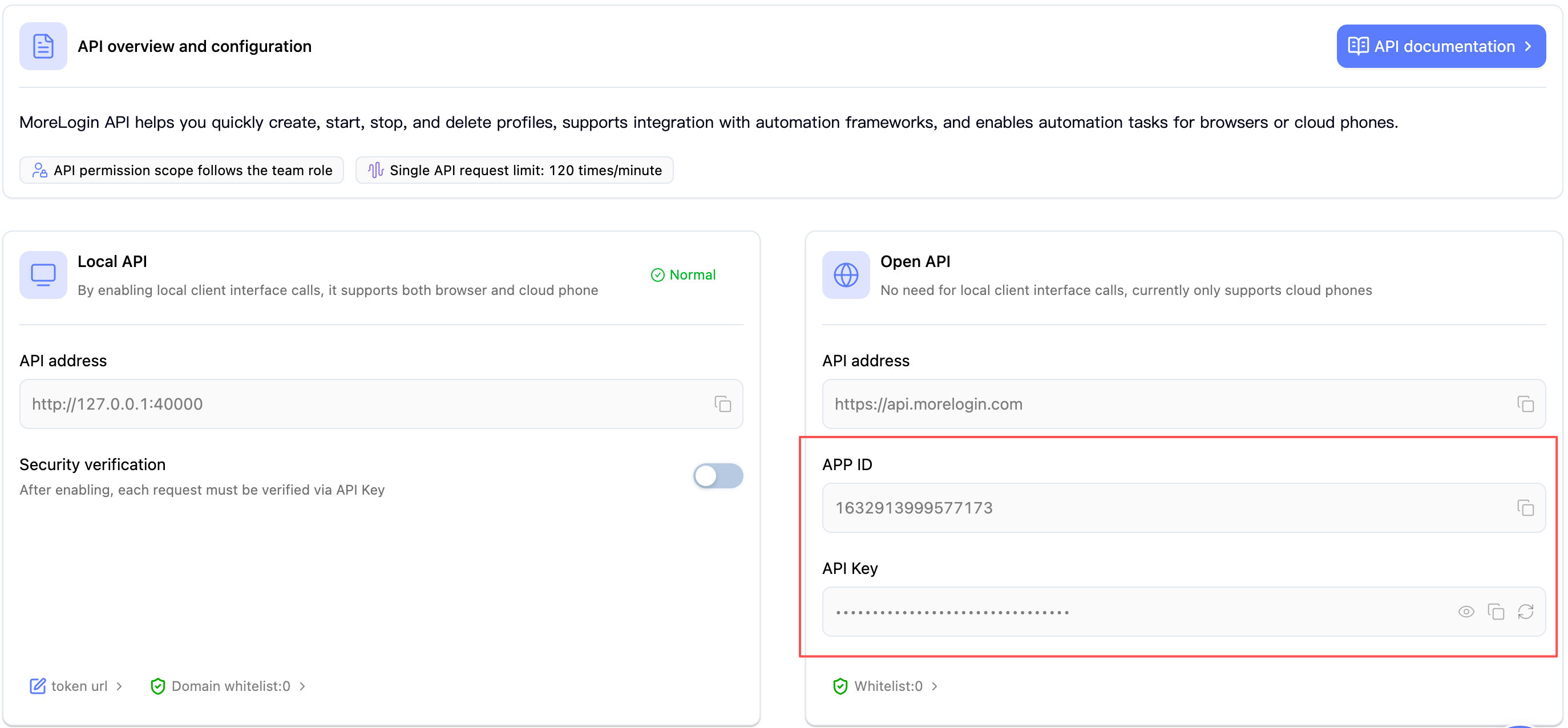
打开 MoreLogin 桌面客户端(在您登录的任何计算机上)并导航至 设置 → API 和 MCP。从 Open API 部分复制 APP ID 和 API Key:
使用您的凭据调用登录端点:
curl -X POST http://127.0.0.1:40000/api/user/login \
  -H "Content-Type: application/json" \
  -d '{
    "apiId": "YOUR_APP_ID",
    "apiKey": "YOUR_API_KEY"
  }'
成功的响应如下所示:
{"code": 0, "msg": null, "data": true}通过列出浏览器来确认 API 已准备就绪:
curl -s -X POST http://127.0.0.1:40000/api/env/page \
  -H "Content-Type: application/json" \
  -d '{"pageNo": 1, "pageSize": 1}'
{"code":0, ...}响应表示您已登录且 API 已准备就绪。
检查点: 您的 MoreLogin 服务器已完全运行。继续进行步骤 4 进行远程访问,或者如果在同一服务器上运行脚本,则直接跳到步骤 5。
[!NOTE] 只要 MoreLogin 进程正在运行,登录会话就会持续存在。如果重新启动AppImage,则需要重新登录。
默认情况下,本地 API (:40000) 和 CDP 调试端口都绑定到 127.0.0.1。如果您需要从外部计算机(例如您的开发笔记本电脑)访问它们,请使用 socat 转发流量。
[!WARNING] 安全风险 - 不要将这些端口暴露给公共互联网。
- 对于大多数端点,本地 API 没有内置身份验证。
- CDP 调试端口授予浏览器实例的完全远程控制(读取 cookie、注入脚本、捕获屏幕截图)。
建议:
- 使用 SSH 隧道 而不是 socat 进行远程访问:
ssh -L 40000:127.0.0.1:40000 user@server- 如果您必须使用 socat,请使用防火墙规则将访问限制为 仅限特定 IP
- 使用 VPN 或云提供商安全组来限制入站流量
- 绝不在没有 IP 限制的面向公众的服务器上打开到
0.0.0.0的端口40001/ CDP 端口
nohup socat TCP-LISTEN:40001,fork,reuseaddr,bind=0.0.0.0 TCP:127.0.0.1:40000 &外部计算机现在可以访问位于
http://<server-ip>:40001的 API。
当您通过 API 启动浏览器时,响应会包含动态 debugPort(例如 9222)。每个浏览器环境可能接收不同的端口。转发它,以便外部自动化工具(Playwright、Puppeteer、Selenium)可以连接:
# Example: if debugPort=9222, forward to external port 9223 (debugPort + 1)
# Adjust both ports to match the actual debugPort returned by /api/env/start
nohup socat TCP-LISTEN:9223,fork,reuseaddr,bind=0.0.0.0 TCP:127.0.0.1:9222 &
[!WARNING] 同时运行多个浏览器时,请确保转发的端口不会与其他浏览器的调试端口发生冲突。例如,如果浏览器环境 A 收到
debugPort=9222,并且您转发到9223,但浏览器环境 B 收到debugPort=9223,则会出现端口冲突。考虑使用更大的偏移量或专用端口范围。
[!TIP] 在生产中,在每次
/api/env/start调用后使用返回的debugPort动态创建 socat 转发。请参阅 Python 示例 了解有效的实现。
如果在同一服务器上运行自动化脚本,您可以跳过 socat 并直接连接到
127.0.0.1。
如果您使用 socat,请仅限制对受信任 IP 的访问:
# Allow only a specific IP (recommended)
sudo ufw allow from <YOUR_IP> to any port 40001 proto tcp
sudo ufw allow from <YOUR_IP> to any port 9223 proto tcp

# Or allow from any IP (NOT recommended for production)
# sudo ufw allow 40001/tcp
# sudo ufw allow 9223/tcp为了实现最安全的远程访问,请使用 SSH 隧道 — 无需更改防火墙或 socat。
由于 CDP 端口是动态(在启动浏览器时分配),因此工作流程为:
首先为 API 端口建立隧道:
# Run this on your local machine
ssh -L 40000:127.0.0.1:40000 user@<server-ip>
通过隧道 API (
http://127.0.0.1:40000/api/env/start) 启动浏览器并读取返回的debugPort。为 CDP 端口打开第二条隧道:
# Replace <debugPort> with the actual port returned by the API
ssh -L <debugPort>:127.0.0.1:<debugPort> user@<server-ip>
从本地 Playwright/Puppeteer 脚本连接到
http://127.0.0.1:<debugPort>,就像服务器位于本地一样。
[!TIP] 如果您事先知道端口范围,则可以将两个隧道组合在一个命令中,例如:
ssh -L 40000:127.0.0.1:40000 -L 9222:127.0.0.1:9222 -L 9223:127.0.0.1:9223 user@<服务器IP>但实际上,首先启动 API 隧道,然后根据需要添加每个浏览器的隧道会更容易。
下面是一个最小的 Python 示例,显示了浏览器的完整生命周期。有关具有并发性和错误处理功能的完整生产就绪脚本,请参阅 GitHub 上的完整示例。
pip install requests playwrightPlaywright 在此仅用于其 CDP 客户端 (
connect_over_cdp)。您不需要运行playwright install— MoreLogin 提供自己的浏览器。
在 Linux Server 上,浏览器引擎必须使用 --no-sandbox 标志运行。您需要在创建或修改浏览器环境时,通过 startupParams 字段传递此参数。
[!CAUTION] 如果缺少
--no-sandbox,浏览器在大多数 Linux 服务器环境中(特别是以root用户运行或缺少完整桌面会话时)将无法启动。
使用 /api/env/create/advanced 创建包含 startupParams 的环境(/api/env/create/quick 接口不支持此字段):
curl -X POST http://127.0.0.1:40000/api/env/create/advanced \
  -H "Content-Type: application/json" \
  -d '{
    "browserTypeId": 1,
    "operatorSystemId": 5,
    "startupParams": ["--no-sandbox"]
  }'
[!TIP] 如果您使用
/api/env/create/quick创建了环境,请在启动前调用/api/env/update添加--no-sandbox— 参见下方。
如果您已有的浏览器环境在创建时未包含 --no-sandbox,请在启动前进行更新:
curl -X POST http://127.0.0.1:40000/api/env/update \
  -H "Content-Type: application/json" \
  -d '{
    "envId": "YOUR_ENV_ID",
    "startupParams": ["--no-sandbox"]
  }'
[!NOTE]
startupParams字段接受字符串数组。您也可以在此添加其他 Chrome 标志(例如["--no-sandbox", "--disable-gpu"])。--no-sandbox标志仅在 Linux 上需要 — Windows 和 macOS 环境无需此设置。
此示例假设脚本与 MoreLogin 在同一服务器上运行。远程场景请参见代码后的注释。
import requests
from playwright.sync_api import sync_playwright

# ── Configuration ──────────────────────────────────────────
# Local:  script runs on the SAME server as MoreLogin
# Remote: script runs on a DIFFERENT machine — see notes below
API_BASE  = "http://127.0.0.1:40000"


# ① Create a browser profile
resp = requests.post(f"{API_BASE}/api/env/create/quick", json={
    "browserTypeId": 1,
    "operatorSystemId": 5,
    "quantity": 1
})
resp_data = resp.json()
assert resp_data["code"] == 0, f"Create failed: {resp_data}"
env_id = resp_data["data"]["envIds"][0]
print(f"✅ Created profile: {env_id}")


# ①-b Add --no-sandbox (required on Linux Server)
resp = requests.post(f"{API_BASE}/api/env/update", json={
    "envId": env_id,
    "startupParams": ["--no-sandbox"]
})
resp_data = resp.json()
assert resp_data["code"] == 0, f"Update failed: {resp_data}"
print(f"✅ Set --no-sandbox for profile: {env_id}")


# ② Start the profile (headless)
resp = requests.post(f"{API_BASE}/api/env/start", json={
    "envId": env_id
})
resp_data = resp.json()
assert resp_data["code"] == 0, f"Start failed: {resp_data}"
debug_port = resp_data["data"]["debugPort"]   # Dynamic — different for each profile
print(f"✅ Started — debug port: {debug_port}")


# ③ Build the CDP URL
cdp_url = f"http://127.0.0.1:{debug_port}"


# ④ Connect via CDP and automate
with sync_playwright() as p:
    browser = p.chromium.connect_over_cdp(cdp_url)
    page = browser.contexts[0].pages[0]
    page.goto("https://www.google.com")
    page.screenshot(path=f"screenshot_{env_id}.png")
    print(f"✅ Screenshot saved")
    # Use disconnect() — not close() — to detach without killing the browser.
    # The profile will be stopped cleanly via the API in step ⑤.
    browser.disconnect()


# ⑤ Stop the profile
requests.post(f"{API_BASE}/api/env/close", json={"envId": env_id})
print(f"✅ Profile stopped")


# ⑥ Delete the profile
requests.post(f"{API_BASE}/api/env/remove", json={"envIds": [env_id]})
print(f"✅ Profile deleted")
[!NOTE] 从远程计算机运行? 两种方法:
选项 A — SSH 隧道(推荐): 设置从本地计算机到服务器的 SSH 隧道(请参阅 § 4.4),然后保留
API_BASE = "http://127.0.0.1:40000"和cdp_url = f"http://127.0.0.1:{debug_port}"— SSH 使远程端口显示为本地。选项 B — 服务器上的 socat: 在 服务器 上,为 API 端口和每个 CDP 端口启动 socat 转发:
# 在服务器上运行这些,而不是在本地计算机上
socat TCP-LISTEN:40001,fork,reuseaddr,bind=0.0.0.0 TCP:127.0.0.1:40000 &
socat TCP-LISTEN:$((debug_port+1)),fork,reuseaddr,bind=0.0.0.0 TCP:127.0.0.1:$debug_port &
然后在脚本中设置
API_BASE = "http://<server-ip>:40001"和cdp_url = f"http://<server-ip>:{debug_port + 1}"。 ⚠️ 使用防火墙规则限制访问 - 请参阅 § 4.3。
[!IMPORTANT]
resp.json()["data"]["envIds"]结构与当前的/api/env/create/quick响应格式匹配。如果您遇到不同的形状(例如data: ["id1", ...]),请检查您的版本的 API 参考 - 响应格式可能因版本而异。
使用完整压力测试脚本在 Ubuntu 24.04 服务器虚拟机(8 个 vCPU、8 GB RAM)上获得以下结果:
| 指标 | 数值 |
|---|---|
| 总运行次数 | 100 |
| 并发 | 4(同时) |
| 成功率 | 100.0% |
| 总时间 | 604.06秒 |
| 每项任务的平均时间 | 6.04秒 |
| 吞吐量 | 0.17 任务/秒 |
这些数字作为基线。实际性能取决于服务器规格、网络条件和页面复杂性。
对于生产服务器,将 MoreLogin 作为 systemd 服务 运行,以在启动时自动启动、在崩溃时重新启动以及集中日志记录。
sudo tee /etc/systemd/system/morelogin.service > /dev/null <<'EOF'
[Unit]
Description=MoreLogin Browser (headless)
After=network-online.target
Wants=network-online.target

[Service]
Type=simple
User=root
WorkingDirectory=/opt/morelogin
ExecStart=/usr/bin/xvfb-run -a /opt/morelogin/MoreLogin_x86_64_2.54.0.AppImage --no-sandbox
Restart=on-failure
RestartSec=10
StandardOutput=journal
StandardError=journal

[Install]
WantedBy=multi-user.target
EOF
调整
WorkingDirectory和ExecStart路径以匹配您放置 AppImage 的位置。
[!TIP] 对于生产,请考虑创建专用用户(例如
morelogin)而不是作为root运行,并相应地调整文件所有权和权限。如果 AppImage 当前需要 root 权限,您可以保留User=root,但最佳实践是在非 root 帐户下隔离该进程。
sudo systemctl daemon-reload
sudo systemctl enable morelogin    # Auto-start on boot
sudo systemctl start morelogin # Start nowsudo systemctl status morelogin # Check status
sudo journalctl -u morelogin -f # Stream logs
sudo systemctl restart morelogin # Restart
sudo systemctl stop morelogin # Stop[!NOTE] 重新启动后,您必须再次调用登录端点 - API 会话无法在进程重新启动后继续存在。对于自动恢复,请考虑添加
ExecStartPost脚本或在服务启动后调用登录端点的运行状况检查 cron 作业。
AppImages require FUSE to run.修复: 安装 FUSE 支持:
sudo apt install -y libfuse2t64修复: 安装目标语言的字体包(请参阅步骤 1 - 安装字体)。
原因: CDP 调试端口默认绑定到 127.0.0.1。
修复: 设置 socat 转发(请参阅步骤 4)并确保防火墙规则允许转发的端口。
原因: MoreLogin 尚未完成启动,或进程崩溃。
修复:
- 启动后等待 5-10 秒
- 检查
morelogin.log是否有错误 - 验证进程正在运行:
ps aux | grep MoreLogin
{"status": "error", "code": 401, "message": "Your login status has expired, please log in again"}原因: 您没有通过API登录,或者MoreLogin进程被重启。
修复: 在任何其他 API 调用之前调用登录端点(请参阅步骤 3)。
| 目标 | 链接 |
|---|---|
| 完整的浏览器 API 参考 | 浏览器 API |
| 认证设置 | 身份验证指南 |
| Playwright / Selenium / Puppeteer 示例 | 自动化示例 |
| 完整的Linux压力测试脚本 | GitHub — linux_server_test.py |
| CLI 快速入门 | CLI 指南 |